12 Nectar Flows Examples HR teams can build today
Most of the moments that shape how people feel about work already sit on a calendar somewhere. Here are twelve ways HR teams are putting a system behind them, from a new hire's first morning to a fifteenth anniversary.
Ask an HR leader about a moment that slipped through the cracks and you will usually hear a specific story. A new hire waited at an empty desk until mid-morning because their manager was traveling and nobody had told the team. A ten-year anniversary award arrived three weeks late, well after the employee had noticed. A 30-day check-in that everyone agreed mattered never happened, because it lived in a calendar reminder owned by someone who had since changed roles.
The people in these stories usually cared a great deal. What they lacked was a reliable way to act on dates their systems already knew. The HRIS knows when someone starts, when they reach five years, and when they move to a new team, yet the welcome, the award, and the check-in still depend on a busy person remembering to do them, on top of everything else they own.
Nectar Flows was built to close that gap. A flow begins with a trigger, such as a hire date, a work anniversary, or someone joining a list, and then runs a sequence of steps you arrange on a visual canvas: a message, a pause, a branch for different groups, an award. Once you publish it, every person who qualifies gets the same experience on time, and HR gets its hours back for the conversations no system can have.
The twelve examples below come from what customers are building today. Four of them ship as ready-made templates, and each one notes the trigger it starts from and the Nectar products it relies on, so you can see quickly which ones you could publish this afternoon.
A short tour before you build
Nectar Flows is included in every Nectar workspace, along with delays, branches, and plain-text messages, so a workspace with no additional products can still build most of what follows. Three capabilities come from elsewhere: awards come from Nectar Recognition, designed emails come from Nectar Comms, and starting a flow from an outside system comes from Nectar Connect.
Every flow starts in the same place, a picker with five triggers: Hire Date, Work Anniversary, Joins List, Leaves List, and API Trigger.
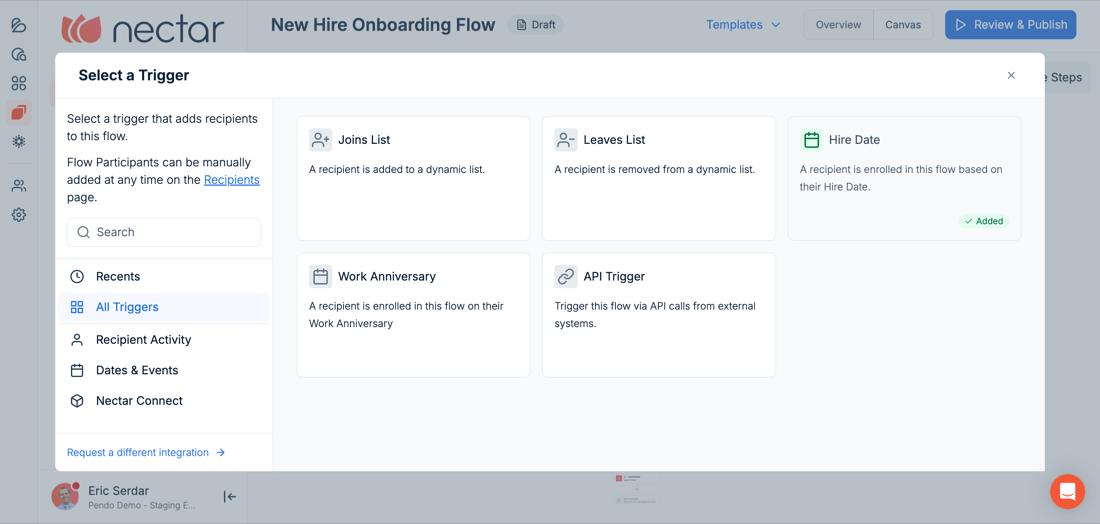
Every flow starts with one of five triggers.
Most flows send at least one message, and each Send Communication step asks the same question: plain text, or a designed email?
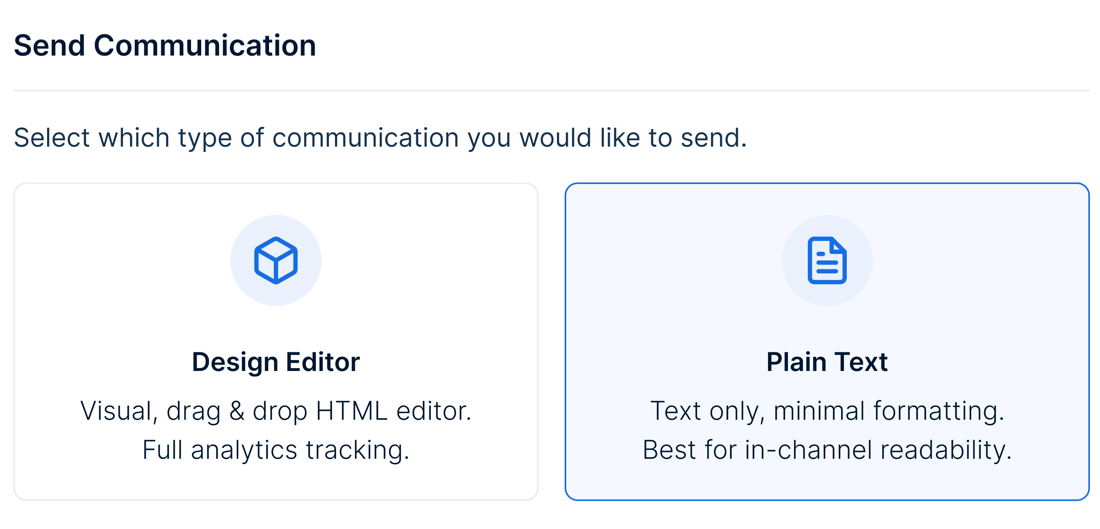
The choice inside every Send Communication step.
Plain text is available to every customer. It supports merge fields such as a person's name or hire date, and it reads the same in email, SMS, Slack, Teams, and WhatsApp, which makes it the right format for anything someone needs to act on, like a reminder, a checklist, or a quick welcome.
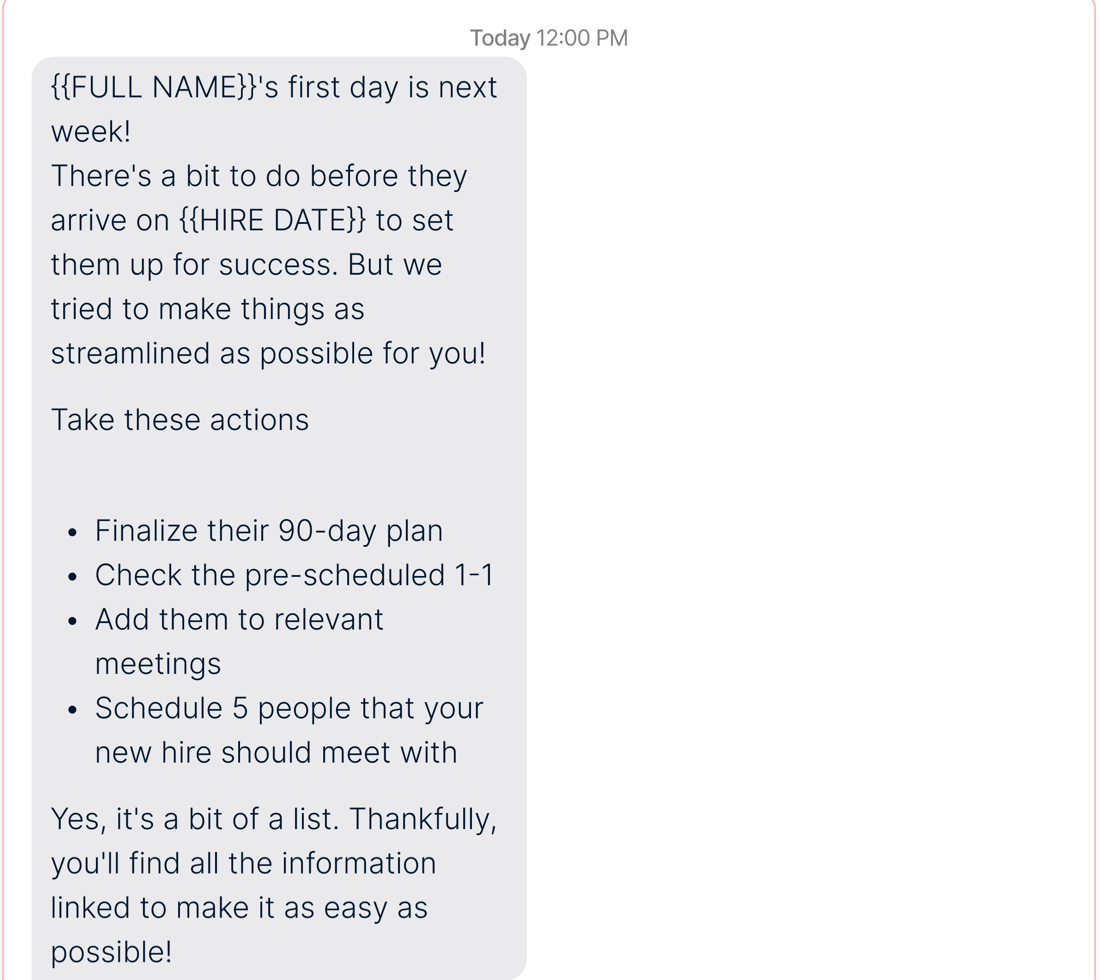
A plain-text heads-up to a new hire's manager.
Designed emails are built in the Nectar Comms drag-and-drop editor and carry your logo, imagery, and buttons, along with click analytics. They suit the moments that should feel like an occasion, such as a launch announcement or a milestone anniversary. When you send one, you write a short plain-text version in the same step for the people who will see it in chat or by text.
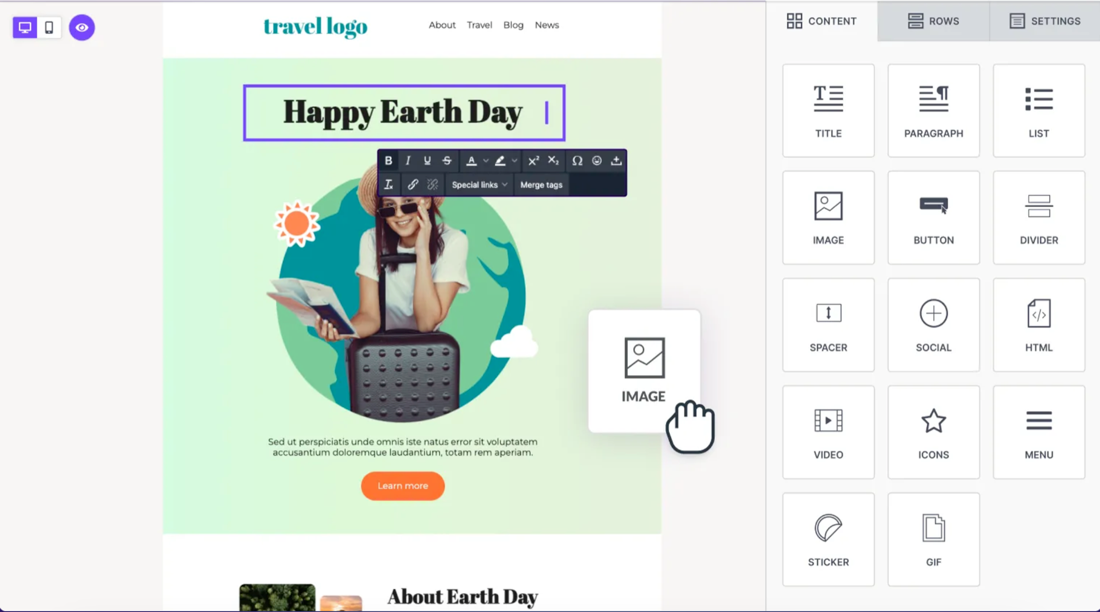
A branded email in the Nectar Comms design editor.
If you would rather not begin with a blank canvas, the Template Library holds multiple flows templates that are ready to edit and publish. Each is marked as a template below.
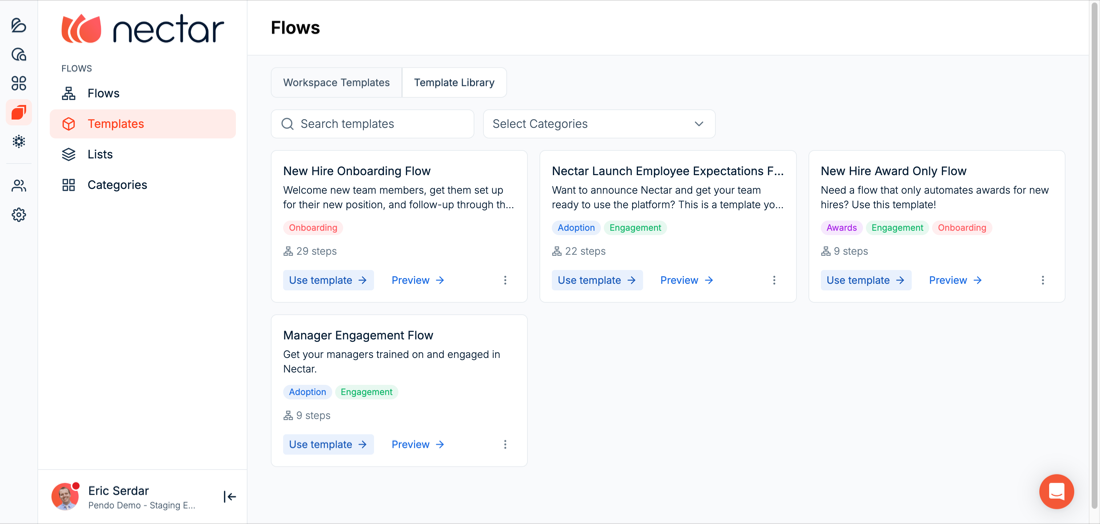
The four flows in the Template Library.
Part one: The first ninety days
Onboarding is where most teams start, and Hire Date is the trigger behind more live customer flows than any other. The template does most of the work here, and the two examples after it show the techniques it is built from.
1. New Hire Onboarding
The New Hire Onboarding template is the most complete flow in the library, and it is worth opening even if you plan to build your own. Its 29 steps carry a new hire through their first three months. On day one the employee receives a welcome and their manager receives a heads-up, and on day two comes a note on culture and values. The flow then splits on employee type, so full-time staff and everyone else follow separate tracks with the same rhythm: a message about getting started with Nectar, then at 30, 60, and 90 days a reminder to the manager and a short check-in survey for the employee. The full-time track closes with an award.
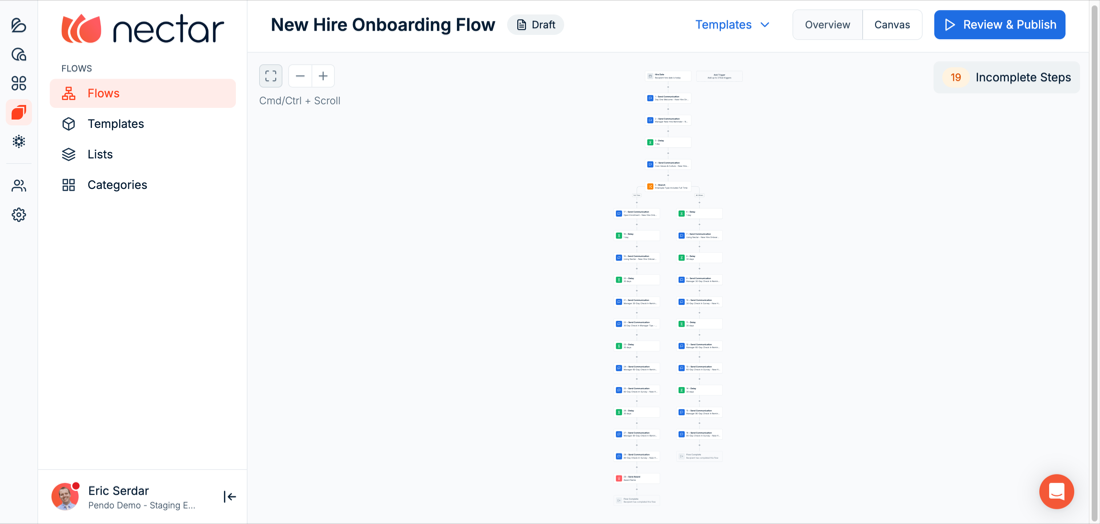
The New Hire Onboarding template, branching on employee type.
First-time builders most often stall at the blank canvas, and this template avoids that by already containing the four things teams ask for most: a first-day welcome, manager prompts, a split by employee type, and the 30, 60, and 90-day check-ins. Setup is mostly editing. Open the Template Library, choose New Hire Onboarding, and select Use Template. Add Enrollment Criteria if some hires, such as contractors, should never enter, then open the Branch step and point its rule at your own data, for example Employee Type is Full Time.
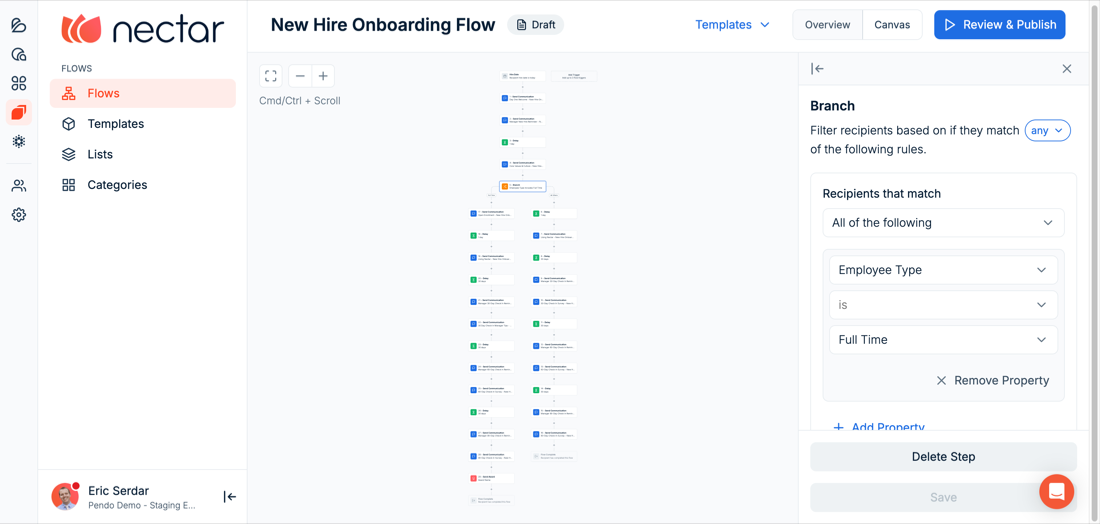
The Branch rule. Change the property or value to match your HRIS fields.
From there, rewrite each message in your own voice, paste your survey links into the 30, 60, and 90-day steps, and either set the closing award or delete it if you do not use Nectar Recognition. If the whole sequence feels like too much for a first build, delete everything after the first Send Communication step and you have a simple day-one welcome you can expand later.
2. Day-One Manager Heads-Up
Managers lose track of start dates more often than anyone likes to admit, and a new hire who is greeted with surprise remembers it. This flow sends the manager, and only the manager, a short note on the morning their new hire starts, suggesting they reach out before lunch, introduce the new hire to the team, and post a welcome shoutout.
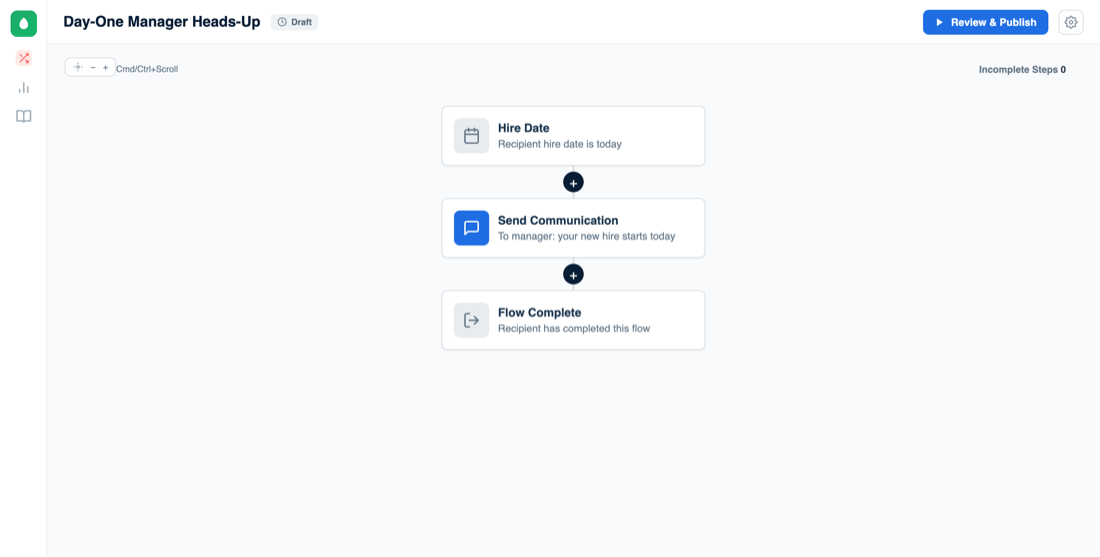
The message goes to the manager rather than the new hire.
The flow has a single step, and what makes it useful is who that step addresses. Every Send Communication step has a Recipients list that defaults to the Flow Participant, the employee whose hire date fired the trigger. Remove them and add Flow Participant's Manager, and Nectar looks up the right manager for each person from your HRIS sync, so nobody has to check reporting lines. You can also add a named person, like an HR coordinator, or an entire list.
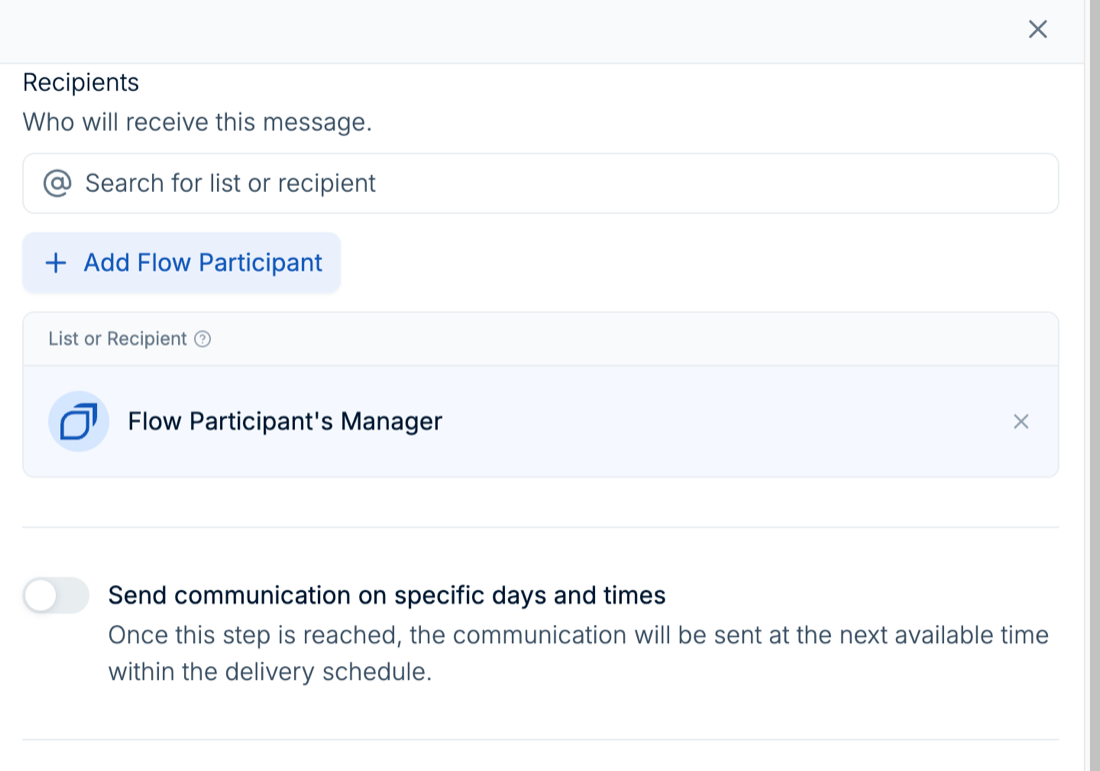
A Send Communication step addressed to Flow Participant's Manager.
That one change powers four of the twelve examples in this article, including the manager reminders inside the onboarding template and the offboarding alert further down. It does depend on your HRIS sync carrying manager relationships, and some payroll providers leave that field out of their export, so check the People page before you rely on it.
3. Location-Branched Onboarding
Companies with more than one site want onboarding that feels consistent everywhere while still telling people where to park, who to find, and which break room is theirs. Instead of maintaining a copy of the flow for every location, you can run one flow that sends a company-wide welcome and then branches by site.
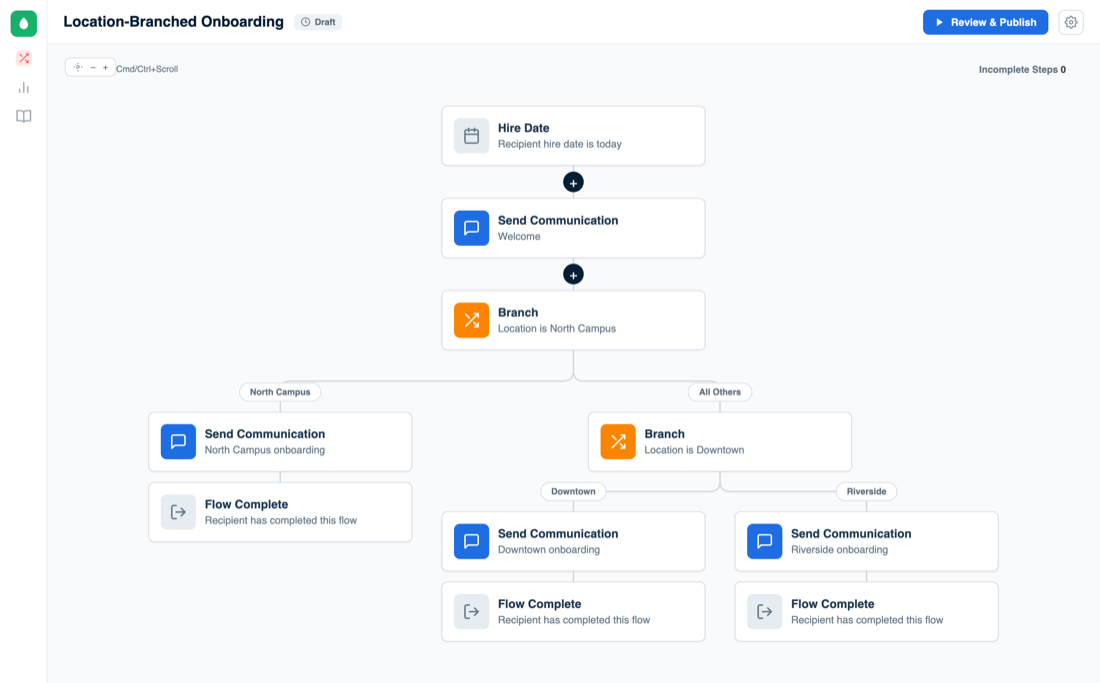
One flow, with a nested branch for each additional site.
Add a Branch step with a rule such as Location is Site A and put Site A's messages on the matching path. Branches split two ways, so a second site gets its own Branch on the All Others path, and a third nests inside that. Because paths do not rejoin, each one ends in its own Flow Complete. A hospitality operator with three properties, each with its own HR manager, chose this as its very first build.
Part two: The dates already on the calendar
Recognition is often where Nectar Flows pays back fastest, because the dates are already known. One customer runs seven anniversary flows, one each for the 3, 5, 10, 15, 20, 25, and 30-year marks, and each pairs a message with an award sized for that milestone. Nobody on that team keeps a spreadsheet of service dates or remembers to check one.
The four flows in this section run on Nectar Recognition and need nothing else, and the first is the one that customers built.
4. Years-of-Service Awards by Milestone
Tiered service awards, something modest at three years, more at five, and a real gift at ten, usually live in a spreadsheet that someone reviews monthly and occasionally forgets. In Nectar Flows each tier becomes a short flow of its own. Set the trigger to Work Anniversary, choose Specific Year, and enter 3. Add a Send Communication step with the anniversary message and a Send Award step sized for that tier, then publish. Duplicate the flow for each milestone you celebrate, changing the year and the award, and the triggers will check the dates every day.
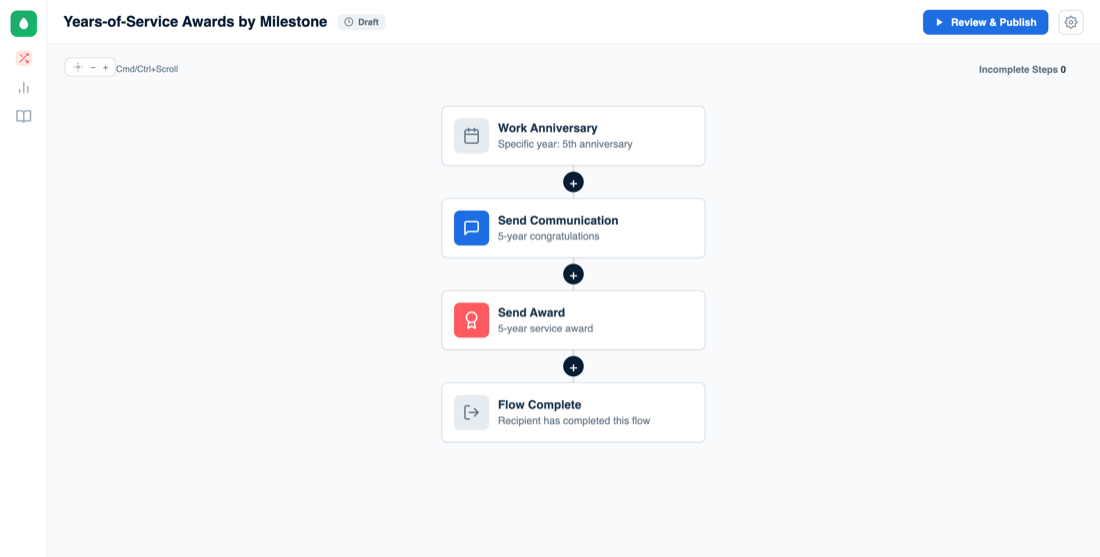
The five-year version. Each milestone gets its own flow.
5. Work Anniversary Award
If tiers are more than you need right now, start with a single award on every employee's anniversary, every year. Anniversaries are the easiest moment to automate and among the most awkward to miss. Set the trigger to Work Anniversary with All years selected, add Enrollment Criteria if you want to leave out contractors, add a Send Award step, and publish.
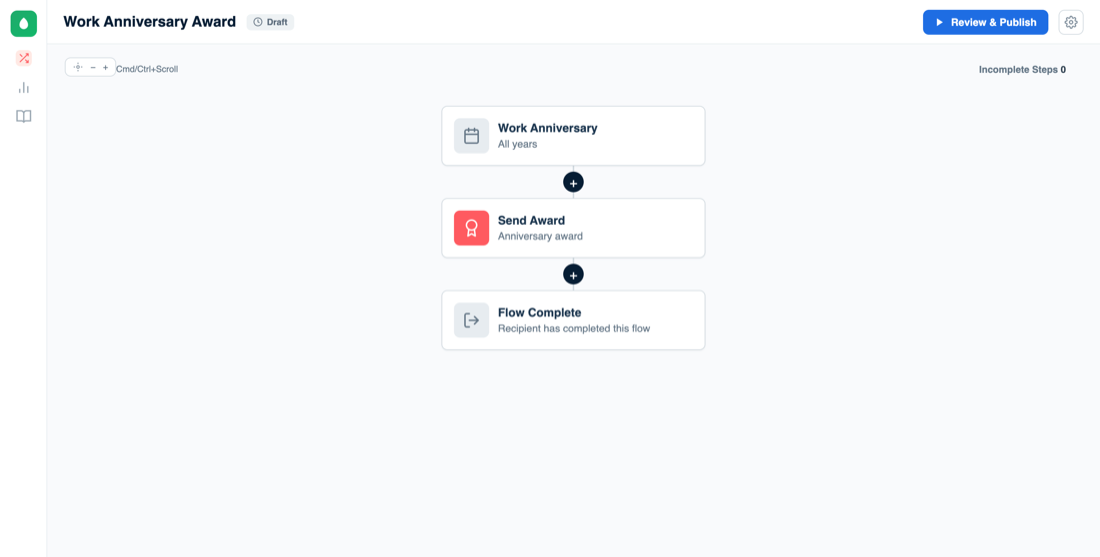
Fires for every employee, every year.
6. New Hire Award Only
The lightest flow in the Template Library sends a welcome award to every new hire with no message sequence around it. For a workspace that runs Nectar Recognition and nothing else, it is the natural place to begin. Choose Use Template on New Hire Award Only, set the award amount and message, and publish.
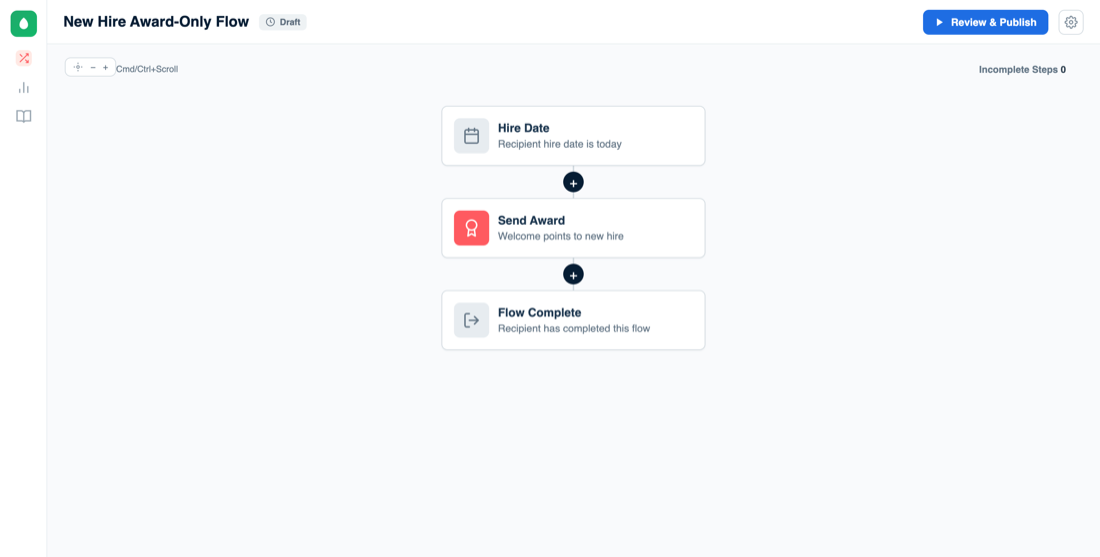
A single award on the hire date.
7. Ninety-Day Recognition
New hires are often recognized when they arrive and then hear nothing until their first anniversary, even though those early months are when many people decide whether to stay. A small award at 90 days, or at six months, adds a moment to that stretch. The offset lives on the trigger itself, so you set Hire Date with a Hire Date Offset of 90 days after, add a Send Award step, and skip the Delay altogether.
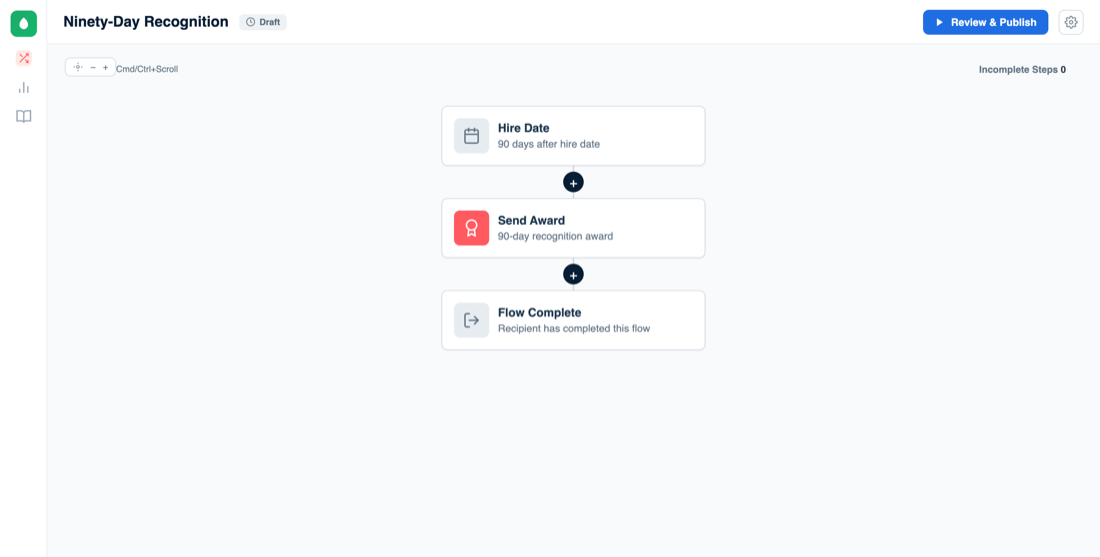
The offset sits on the trigger, so no Delay step is needed.
Part three: Launches, teams, and goodbyes
Some moments have nothing to do with one person's tenure. The next four flows run on lists and enrollment rather than dates, and they cover a company-wide rollout, a cohort of managers, someone joining a team, and someone leaving.
8. Manager Engagement
Managers largely decide whether a recognition program takes hold, and a single training email at kickoff rarely changes how anyone leads. The Manager Engagement template spreads that enablement across a paced sequence covering what Nectar is, how to recognize a team, and when to do it. Choose Use Template, then either set the trigger to Joins List with your managers' dynamic list or add managers directly on the Recipients page. Edit the messages and publish.
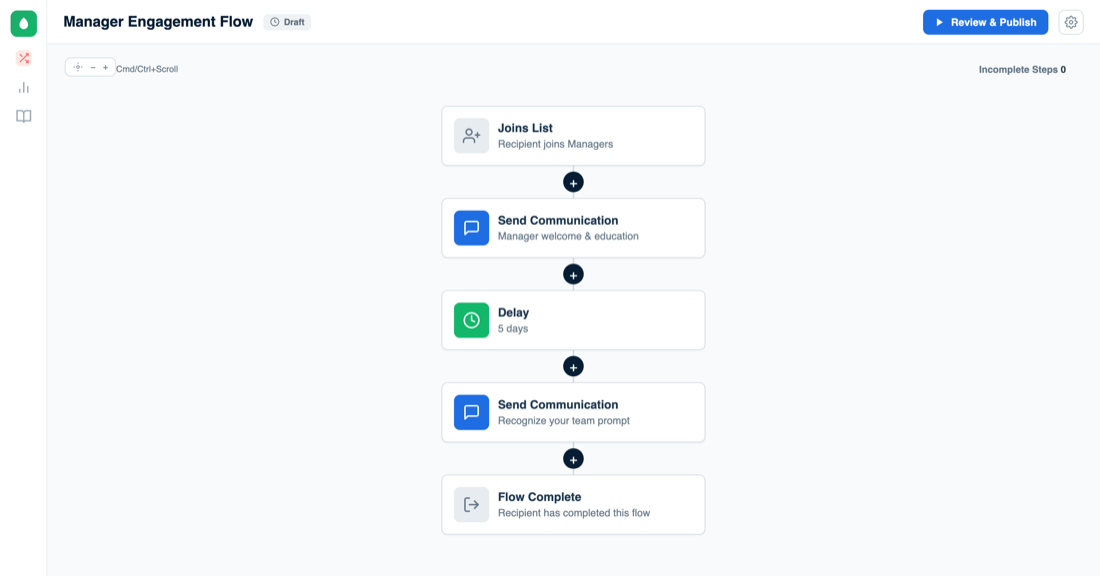
Paced messages to managers, with a Delay between each.
9. Nectar Launch Employee Expectations
Adoption tends to stall when an entire launch rests on one announcement. This template turns the rollout into a short series that explains what Nectar is, how to use it, and the first thing to try, with Delays between messages so each idea has time to land. A sequence like this gets people to their first shoutout, and the first usually prompts the second. Enroll your launch audience, adjust the Delays to fit your launch date, edit the copy, and publish.
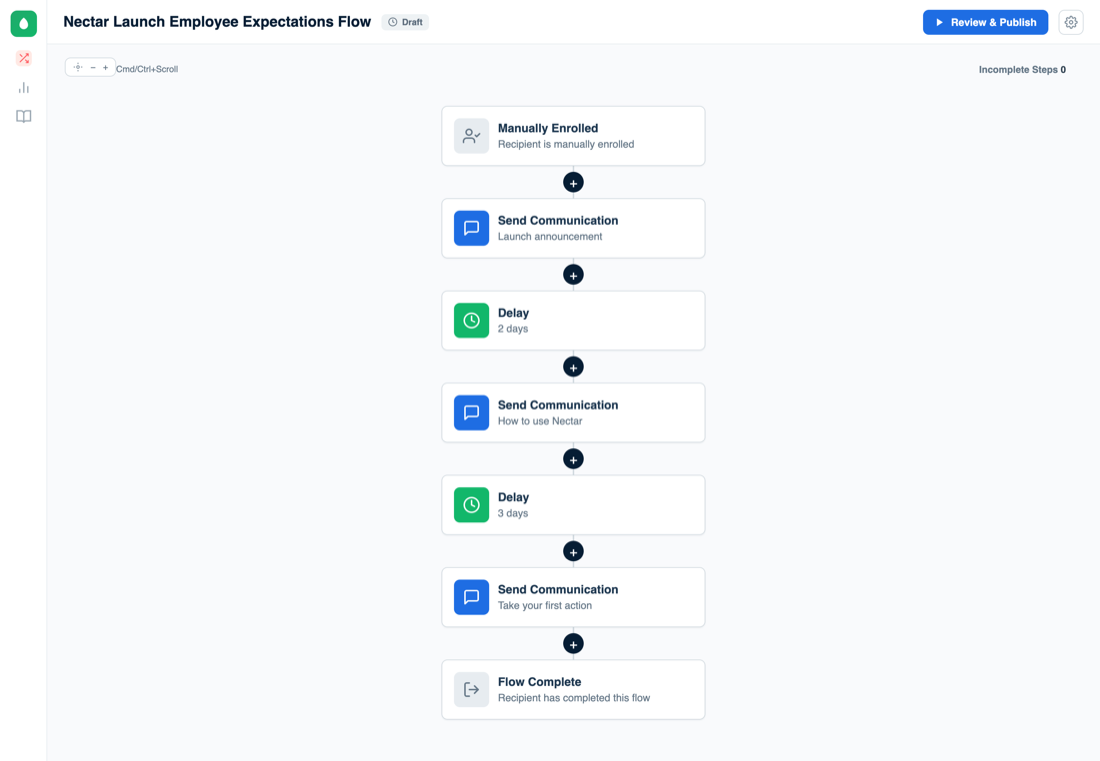
Three messages, spaced out with Delays.
10. New Team Member Welcome
Internal transfers, new committee members, and people moving into a different department each have a small first day of their own, and they rarely get a welcome for it. Pick the dynamic list for the team, set the trigger to Joins List, and add a Send Communication step. The flow fires only for people newly entering the list, so current members never receive it.
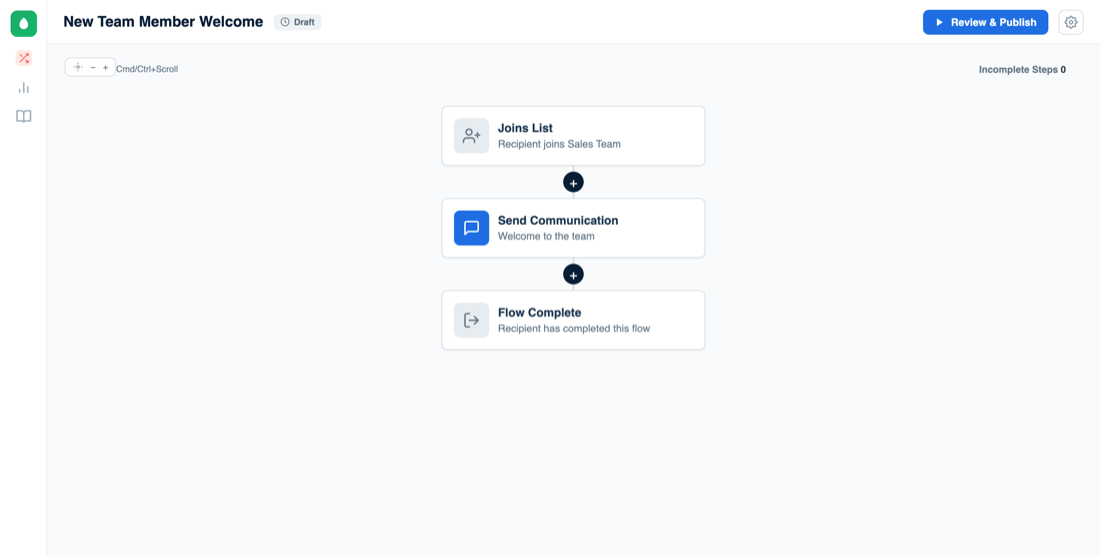
Fires only for people newly joining the list.
11. Offboarding Heads-Up
A departure sets off a dozen small tasks, from equipment returns to access changes, and most of them begin later than they should. This flow alerts HR or the departing employee's manager as soon as that person drops off the Active Employees list. Set the trigger to Leaves List and choose Active Employees, then add a Send Communication step and use the recipient change from example 2 to address it to your HR coordinator or to Flow Participant's Manager.
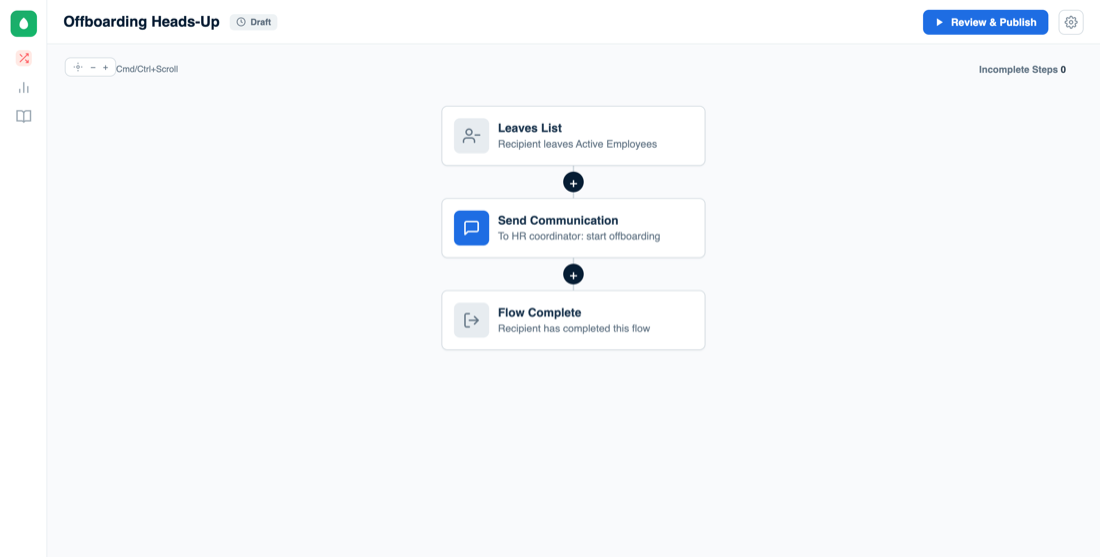
The one flow that starts when someone leaves a list.
Part four: Recognition that starts in another tool
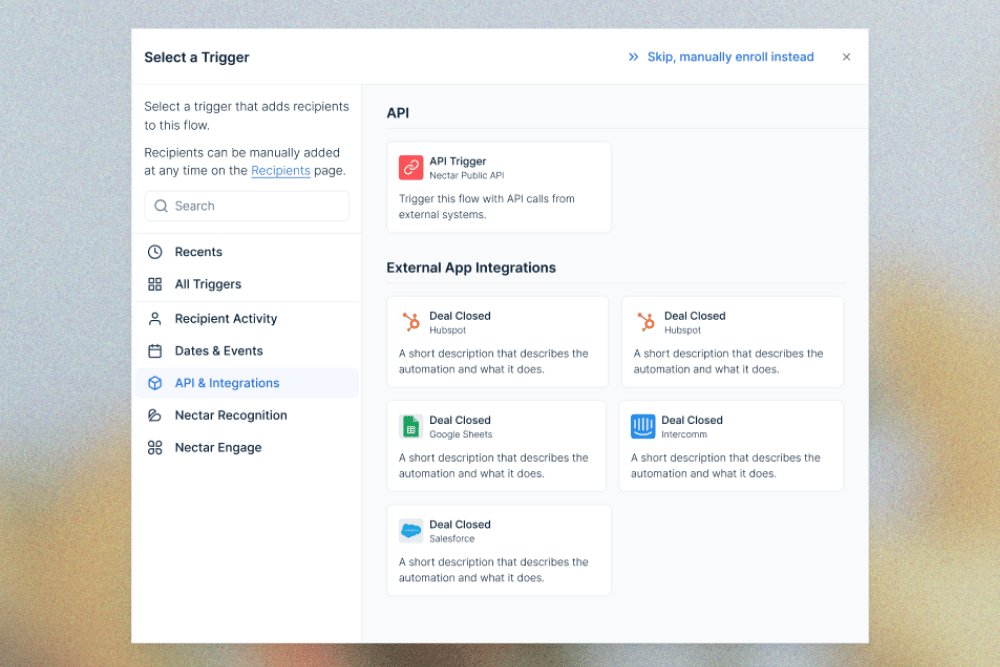
Every flow so far begins with something Nectar already knows, such as a date, a list, or a property. The last example begins with an event somewhere else. It uses the API Trigger, which requires the Nectar Connect add-on and a Zapier account to pass the event along.
12. Closed-Won Deal Recognition
Recognition means the most when it arrives right after the win, and a sales team's wins are recorded the moment a deal closes in HubSpot or Salesforce. This flow sends the rep an award at that moment, so nobody has to spot the deal and remember to post about it.
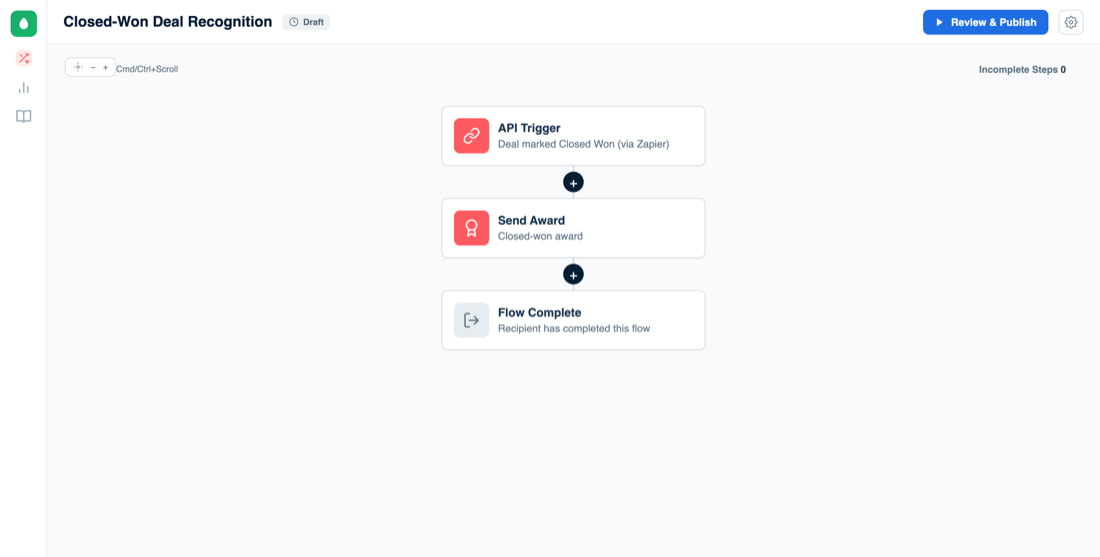
The API Trigger, relayed from Zapier when a deal closes.
Build the flow with an API Trigger and a Send Award step, set it to Active, and copy the trigger URL and your API key. In Zapier, trigger on the deal stage changing to Closed Won, then add a Webhooks by Zapier action set to Custom Request rather than a plain POST. Send it to the flow URL with the body {"emails": ["<rep's email>"]} and your API key as a Bearer token.
The same recipe works for other events, and only the Zap trigger and the award need to change. A five-star rating in Zendesk or Intercom can recognize the support agent who earned it. A completed course in your LMS can send an award and a note of congratulations, through Zapier or a direct API call. A new row in a Google Sheet can give managers a lightweight way to hand out spot awards.
Where to start
The right first flow depends on what you already run. If your workspace has Nectar Recognition and little else, New Hire Award Only or the Work Anniversary Award will be live in minutes, since each is a single step. If you are rolling Nectar out, begin with Nectar Launch Employee Expectations and follow it with Manager Engagement. If onboarding is where things slip, the New Hire Onboarding template already includes the manager prompts and the 30, 60, and 90-day check-ins. And if your service awards still live in a spreadsheet, Years-of-Service Awards by Milestone can retire it.
Whichever you choose, think about who is already partway through the moment you are automating. People who started onboarding before you publish will not be picked up by the trigger, so add them directly on the Recipients page and nobody falls through the gap at go-live.
Ready to build your first one? Open Nectar Flows and pick a template, or book a demo to see these flows running in a live workspace.

At Nectar, we're passionate about creating company cultures people won't want to leave. We're dedicated to creating tools that help companies build stronger cultures, boost engagement, and retain top talent.